Maestro Palo: create pallet product images and presentation videos
Bring a saved pallet or crate into the browser studio, then set wood appearance, camera, logos and markings for product images and video.
Maestro Palo turns a saved pallet or crate into a product presentation in your browser. It uses the geometry from your drawing while you adjust wood appearance, lighting, camera, company branding and markings. To change component dimensions, first edit and save the original drawing.
1. Select your saved drawing
Save the design in Palo or Palo Box first. Open Maestro Palo and bring that saved drawing into the studio. Check the orientation, overall dimensions and visible components. A studio example is not your own product specification: choose the correct saved version for the customer presentation.
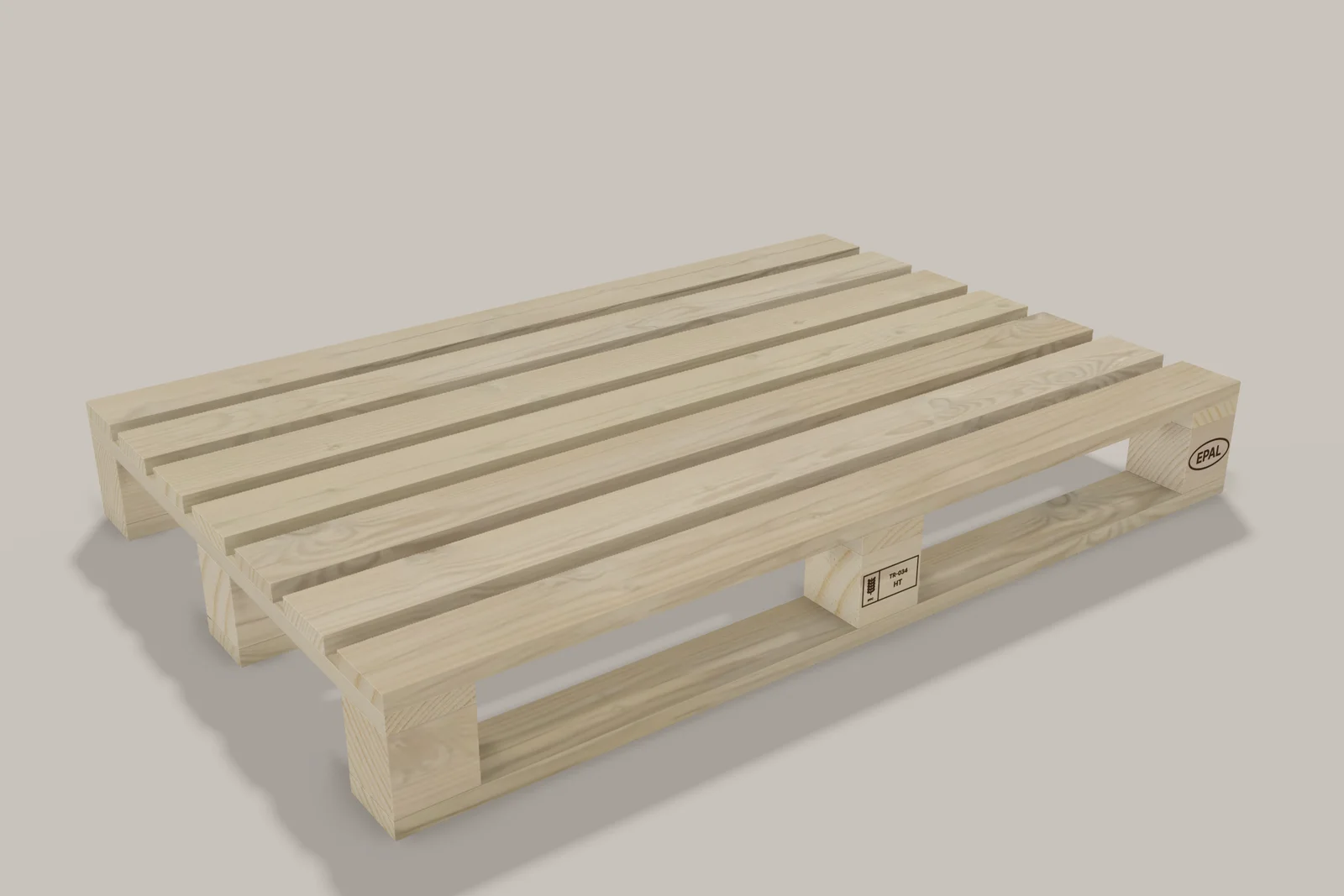
2. Set the camera, wood appearance and branding
Choose an angle that explains the product. An overall view should show the entire pallet; a close-up can show a joint or marking. Add your company logo and text. EPAL and ISPM 15 marks placed on a drawing are visual representations only; the studio does not provide a licence, heat treatment or certification.
3. Prepare an image or a video
For an image, check that dimensions, the parts list and notes do not obscure the product. For a video, review the preview first and check camera transitions and company text readability. Video is generated on your device, so resolution, scene length and device performance affect the time needed. Keep the tab open until it finishes.
Preview versus full access
Eligible members can try one watermarked 360p preview video using a saved drawing. High-resolution images and clean 1080p videos require active Premium, Platinum or eligible gifted Premium access. The studio and pricing page show the current entitlements.